


Published May 22, 2026 · Last updated August 4, 2026 · 9 min read
Most people do not have a filing problem. They have a finding problem. The document exists — it is just sitting in Downloads as scan_0043.pdf, next to four hundred others. A good system does not require apps, subscriptions or a productivity method. It needs a handful of habits that take seconds per document, and this guide walks through them: folders, filenames, versions, scans, and a short routine that keeps it all going.
Why digital document organization matters
Search only helps when you remember what to search for — and scanned documents often contain no searchable text at all, so a scan with a meaningless filename is effectively invisible. Organisation matters for three practical reasons: you can find the contract the moment a question arises, you can produce an invoice the moment an accountant or authority asks for it, and you are not paying to store terabytes of duplicates and blank scans. A naming convention turns your file browser into an index that sorts itself.
Create a simple folder structure
Start with one parent folder — Documents, or Files — and keep the top level broad. Five to seven folders is enough. Deep nesting feels organised and makes documents harder to find, because you have to remember which branch you chose three years ago.
- Work — client contracts, invoices you issue, reports, project files
- Finance — invoices you receive, receipts, bank statements, tax returns
- Personal — identity documents, medical records, education certificates
- Property — tenancy agreement, utility bills, maintenance records
- Reference — manuals, templates, anything you read but never file
Add subfolders only where volume demands it. Finance/Receipts-2026 works; Finance/Receipts/Restaurants/2026/September is a maze. If a folder grows beyond a couple of hundred files, split it by year and nothing finer.
Use consistent file names
One rule does most of the work: start every filename with the date the document is dated — not the date you saved it — in ISO format, YYYY-MM-DD. Files then sort chronologically by default in every operating system. After the date comes the document type, then the counterparty or subject:
| Bad filename | Good filename |
|---|---|
| scan_0043.pdf | 2026-08-04-invoice-acme-1204.pdf |
| Contract FINAL final2.pdf | 2026-07-19-supplier-agreement-acme-signed.pdf |
| IMG_2291.pdf | 2026-06-02-receipt-train-ticket.pdf |
| doc1.pdf | 2026-03-15-passport-renewal.pdf |
Use lowercase, hyphens instead of spaces, and no special characters. The goal is not elegance — it is that the name tells you what a file is before you open it, and that any two files sort into a predictable order.
Separate active, archived and important documents
Within each top-level folder, two or three status subfolders are usually all you need:
- _active — documents awaiting payment, signature or approval
- _archive — finished business, moved in dated quarterly batches such as 2026-Q3
- _important — passports, deeds, certificates: the documents that are expensive to replace
The underscore prefix pins _active to the top of the list in every file browser. At the end of each quarter, move everything finished out of _active into the archive folder, skim the filenames — anything unclear gets renamed now, while you still remember it — and copy the archive to a second location: an external drive or a synced folder. Small batches take minutes; a year-end backlog reliably never gets done.
Organizing scanned documents
Scans are where filing systems fall apart, because a photo of a receipt has no text, no date metadata and sometimes no correct orientation. Three habits fix most of it. First, turn phone photos into one PDF per document instead of leaving loose images: JPG to PDF combines the two photos of a two-page invoice into a single file. Second, check every scan before filing — straighten sideways pages with Rotate PDF. Third, remove the blank backs and duplicate pages scanners love to produce with Delete PDF Pages. A scan that is legible, upright and correctly named files itself; anything else is a future headache.
Managing multiple PDF versions
Versions are where filenames like final-final2-reallyfinal come from. Dates solve it: keep one canonical name — 2026-07-19-supplier-agreement-acme.pdf — and append a short suffix only when a version genuinely differs: -draft while terms are still moving, -signed once executed. Then delete or supersede the intermediate drafts instead of collecting them. Two habits make this safer: stamp circulating drafts with a visible DRAFT watermark using Watermark PDF so nobody acts on the wrong copy, and when a document arrives as several files or out of order, combine it into one canonical PDF with Merge PDF before the first save.
Useful PDF tools for organization
None of this needs dedicated document-management software. A handful of free browser-based tools cover the mechanical work:
- Merge PDF — combine a contract and its annexes into one file at filing time
- Split PDF — pull a single page out of a statement to share it alone
- Delete PDF Pages — remove blank scans, cover sheets and duplicates
- Rearrange PDF — fix the page order before saving the canonical version
- Compress PDF — shrink scan-heavy archives before backup
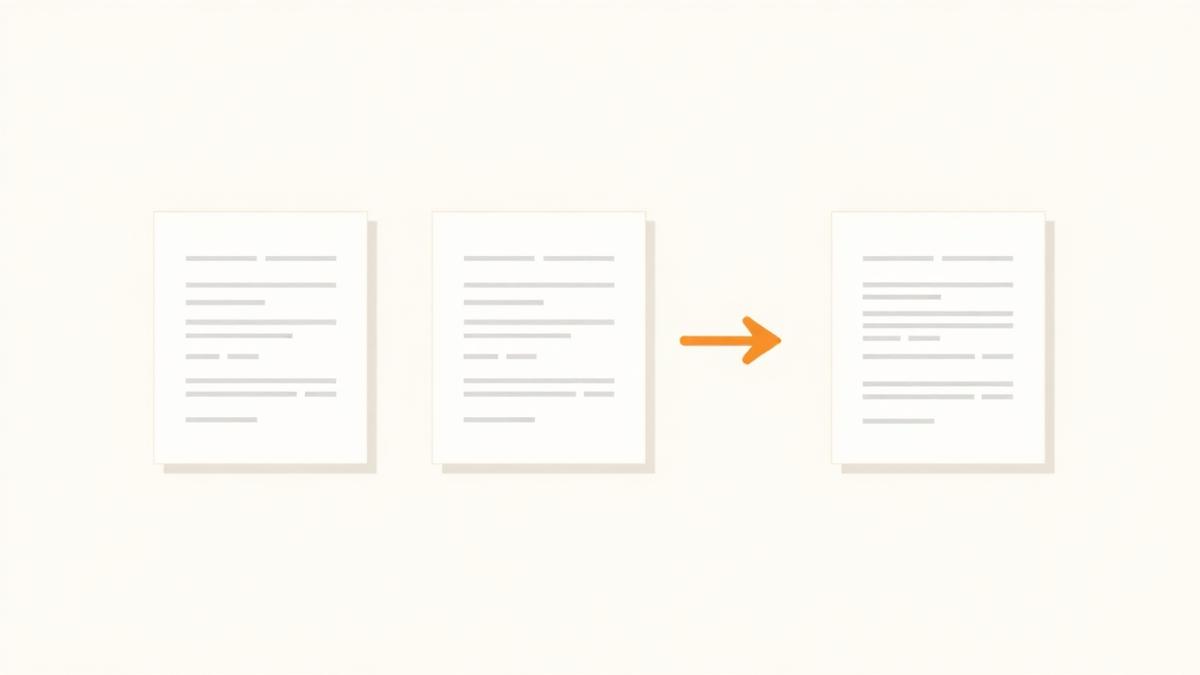
Because these tools run in the browser, none of the steps above add an upload queue to a process that should take seconds — which matters when the routine below depends on filing feeling cheap.
A simple weekly and monthly filing routine
The system survives on two short routines, not on discipline.
Weekly — about ten minutes
- Empty the inbox: file, rename or delete every document sitting in Downloads.
- Rename anything that arrived with a camera or scanner default name.
- Merge multi-part documents into single files.
- Move finished items out of _active.
Monthly and quarterly
- Combine the month's photographed receipts into one file — 2026-09-receipts.pdf — and file it in Finance.
- Back the current archive up to its second location.
- Once a quarter: close out the quarter's archive folder and start a fresh _active.
Ten minutes a week and one longer session a quarter is the whole maintenance cost. If it starts taking longer, the structure has grown too complicated — simplify the folders, not the habits.
Conclusion
Broad folders, date-first filenames, three status subfolders, cleaned-up scans, dated versions, and two short routines. Nothing here takes more than a few seconds per document, and the payoff is a file browser where the right document is usually the first one you see. The tools for the mechanical steps are free and run in your browser — start with the folder structure today and let the habits follow.
Frequently asked questions
- What is the best way to name PDF files?
- Start with the ISO date, then the document type, then the counterparty: 2026-08-04-invoice-acme.pdf. Use lowercase and hyphens. It sorts chronologically automatically and reads clearly at a glance.
- How many folders should a document filing system have?
- Five to seven top-level folders, with subfolders only where a folder genuinely grows large. Deep nesting feels organised but makes documents harder to find, because you have to remember which branch you chose.
- Should I keep documents as PDFs or as images?
- As PDFs where possible. One PDF per document keeps related pages together, is easier to name consistently and opens everywhere; loose photos and screenshots scatter across your camera roll and are easy to lose.
- How do I organise receipts for taxes?
- Photograph each receipt, convert the photos into one PDF per month with a name like 2026-09-receipts.pdf, and file it in your Finance folder. The receipts then sit in one place before the annual rush.
- How long should I keep old documents?
- It depends on the document type and your jurisdiction — tax and financial records often need to be kept for several years, while utility bills rarely do. Quarterly archive folders make whatever period you choose easy to apply: keep or discard by quarter rather than file by file.
- Do I need document management software?
- No. A file browser, a consistent naming rule and a few free browser-based PDF tools for merging, splitting and page cleanup are enough for most households and small businesses.
Put the first habit into practice: combine a document and its annexes into one properly named file.
Start with Merge PDFAbout this article
- Written by
- PDFCraft Team
- Reviewed by
- PDFCraft Editorial Team
- Last updated
PDFCraft builds free, browser-based PDF tools. This guide reflects how our team works with documents day to day and is reviewed whenever the underlying tools change.