Published Jul 12, 2026 · Last updated August 4, 2026 · 9 min read
The PDF turned thirty and quietly refused to retire. Invoices, employment contracts, university transcripts, boarding passes, tax notices and planning applications all still arrive as PDFs, because it remains the only widely accepted format that looks identical on a phone in Lahore, a laptop in Lisbon and a printer in a government office.
What has changed is not the format. It is where the work happens. This article looks at how PDF tooling has shifted from installed desktop suites to upload-based web services and now to local, browser-based processing — and what that means when you choose a tool for your own documents.
Why the format outlived its competitors
A PDF carries its own layout instructions, fonts and images. Open it anywhere and the page breaks stay where the author put them. Word processing formats reflow; spreadsheets recalculate; web pages depend on the browser. A PDF simply renders.
That predictability is why regulators, courts, banks and universities standardised on it, and why a format designed in the early 1990s is still the default attachment in 2026.
Three eras of PDF tooling
1. The desktop era
For years, editing a PDF meant buying a licence, installing several hundred megabytes of software and waiting for it to launch. It worked, but it was expensive, hard to keep updated, and useless on someone else's machine.
2. The upload era
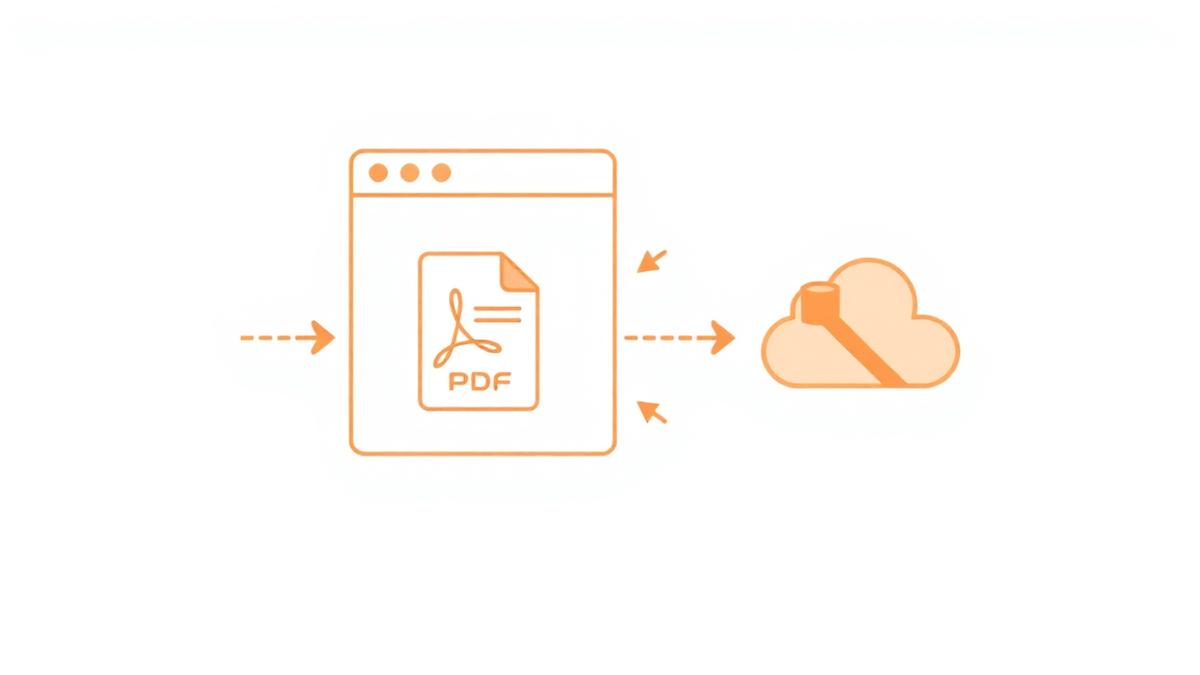
Web tools removed the install, but added a round trip: your file went to a server, waited in a queue, was processed, and came back. Convenient, but every document you touched left your device — including the ones you would never email to a stranger.
3. The local-first era
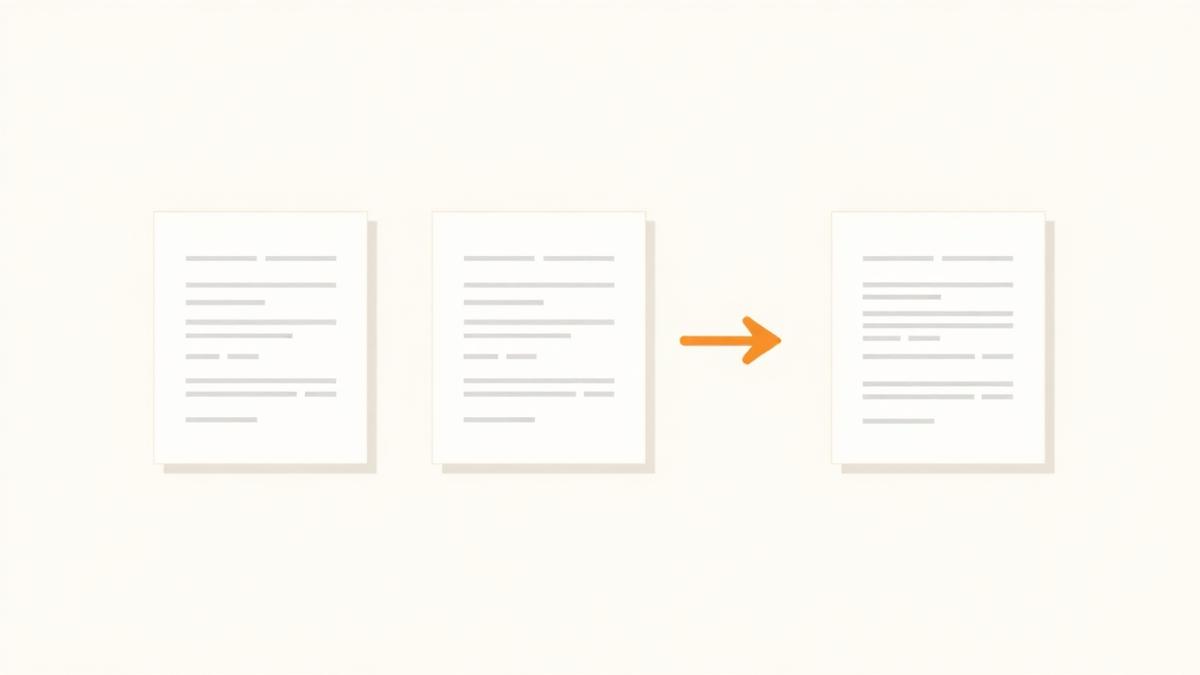
Modern browsers can parse, render and rewrite a PDF entirely in memory. There is no upload, no queue and no download round trip. The file is opened by the page you already have open, changed, and written straight back to your downloads folder.
What this changes in practice
| Concern | Upload-based tool | Browser-based tool |
|---|---|---|
| File transmission | Document is sent to a server | Document stays on your device |
| Speed on large files | Limited by your upload speed | Limited by your device only |
| Offline use | Not possible | Possible once the page has loaded |
| Retention policy | You rely on a written promise | There is nothing stored to retain |
| Account required | Often, for anything useful | Usually not needed at all |
Common use cases in 2026
- Combining a signed contract with its annexes before archiving it — see Merge PDF.
- Pulling a single certificate page out of a scanned bundle with Split PDF.
- Getting a 40 MB scan under an email attachment limit using Compress PDF.
- Marking an internal draft clearly with Watermark PDF.
- Turning a set of phone photos of receipts into one tidy file with JPG to PDF.
How to evaluate a PDF tool
- Check where processing happens. The answer should be stated plainly, not buried in a policy page.
- Check what it costs you in friction: forced sign-up, email verification and download timers are all signals.
- Check the output. Does text stay selectable? Do images keep their resolution? Is a watermark added to the result?
- Check mobile. Open the same tool on a phone and try the core action with your thumb.
- Check the limits. Page counts, file sizes and daily quotas should be visible before you start.
Common mistakes people still make
- Uploading confidential HR or medical documents to whichever tool ranked first, without reading anything.
- Compressing a document that is going to print, then wondering why the images look soft.
- Splitting a file page by page when a single page range would have done the job.
- Flattening a form before someone else needs to fill it in.
- Keeping five near-identical versions instead of merging and naming one final file.
Best practices we follow
- Do the destructive work last: reorganise pages first, then compress.
- Name the output before you download it, not three weeks later.
- Prefer tools that show you the result before you commit — a preview is worth more than a promise.
- Keep one archived original per document, even when you circulate a smaller copy.
Where AI actually fits
Most document work is mechanical: merge, split, rotate, stamp, export. Those tasks do not need a language model, and adding one only slows them down. The genuinely useful AI cases are the ones a human finds tedious — summarising a long report, answering a specific question about a contract, or translating a page. Those are worth doing carefully, and worth labelling clearly when they run. We wrote more about that in AI and PDF: what comes next.
Summary
The PDF is not going anywhere, but the tooling around it has quietly improved. Local-first processing removes the upload, removes the wait and removes the need to trust a retention policy. When you pick a tool, look for a clear statement about where your file is processed, an honest preview of the result, and an interface that works as well on a phone as on a desktop.
Frequently asked questions
- Why is PDF still the standard document format in 2026?
- Because it preserves layout. A PDF carries its own fonts, images and positioning, so the page looks the same on every device and printer — which is exactly what contracts, invoices and official forms require.
- Is browser-based PDF editing as capable as desktop software?
- For everyday tasks — merging, splitting, rotating, compressing, watermarking, stamping, signing and image conversion — yes. Highly specialised prepress and forensic work still belongs in dedicated desktop software.
- Are online PDF tools safe for confidential documents?
- It depends entirely on whether the file is uploaded. If processing happens in your browser, the document never leaves your device, so there is nothing on a server to leak or retain.
- Do browser-based tools work offline?
- Once the page has loaded, local processing does not need a connection. Reloading the page or opening it for the first time does.
- Will editing a PDF reduce its quality?
- Structural edits such as merging, splitting and rotating copy the original page objects, so quality is unchanged. Only compression, which resamples images, can visibly reduce quality.
- How large a PDF can a browser handle?
- That depends on your device memory rather than any server limit. Modern phones handle documents of a few hundred pages comfortably; desktops handle much more.
Ready to put this into practice? Every PDFCraft tool runs in your browser, free and without an account.
Browse all PDF toolsAbout this article
- Written by
- PDFCraft Team
- Reviewed by
- PDFCraft Editorial Team
- Last updated
PDFCraft builds free, browser-based PDF tools. This guide reflects how our team works with documents day to day and is reviewed whenever the underlying tools change.