Last updated August 4, 2026 · 4 min read
Oversized PDFs are a daily annoyance. Mail servers reject attachments over a certain size, upload forms silently fail, and a large scan takes a long time to open on a phone. This guide shows how to try to reduce a PDF's size with PDFCraft, and — just as importantly — how to tell when the file simply cannot get much smaller.
One thing to be clear about first: the free Compress PDF tool optimises the internal structure of the file and, at the Medium and High levels, removes standard document metadata such as title and author. It does not downsample images or re-render pages, so page content is preserved — and savings vary a lot depending on how the PDF was produced.
What you need before you start
- The PDF you want to shrink, and its current file size.
- The size limit you are trying to meet, if there is one — an email or upload cap, for example.
- A current browser on desktop or mobile.
- Passwords removed from any encrypted PDF.
Where PDF size actually comes from
Scanned images
A scanned page is a photograph of paper, so a colour scan at a high DPI can be several megabytes per page. Text-based PDFs exported from a word processor are usually far smaller for the same content. If your file is a scan, most of its weight is image data — and structural optimisation cannot remove image data.
Structural waste and metadata
Documents assembled from several sources often carry leftover objects, inefficient internal structure and descriptive metadata added by the software that produced them. That is the part this tool can rewrite and tidy, which is why some files shrink noticeably while others hardly change.
When should you try compressing a PDF?
- The file is a little over an email or upload limit.
- You are publishing a document for download and want it to open quickly.
- The PDF came out of software that produces bulky output.
- You are archiving many documents and want tidier files.
If the file is a big scan and you need a dramatic reduction, compressing is not the right lever — rescanning at a lower DPI in greyscale, or removing pages you do not need, will do far more.
Choosing a level
| Level | What it does | Best for |
|---|---|---|
| Low | Rewrites the file structure only and keeps document metadata | Files where you want the title, author and other properties preserved |
| Medium | Structural optimisation plus removal of standard metadata | The sensible starting point for most documents |
| High | The same optimisation with metadata removed | When you want the leanest output and do not need the document properties |
How to compress a PDF step by step
Step 1 — Upload and note the original size
Open the Compress PDF tool and add your file. The original size is displayed, giving you a baseline to compare against.
Step 2 — Pick a level
Start with Medium. Choose Low instead if the document's properties matter to you, or High when you simply want the leanest result.
Step 3 — Run the optimisation
Watch the progress indicator move through preparing, processing and finalising. Long documents take longer because there is more structure to rewrite.
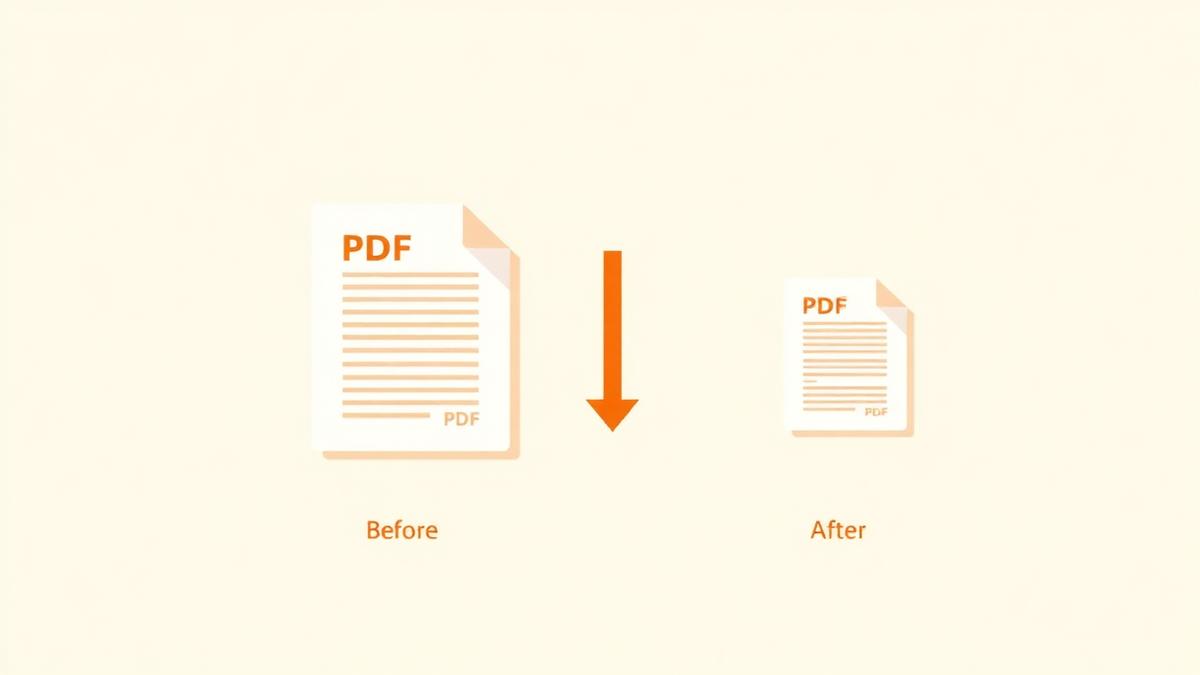
Step 4 — Compare before and after
The tool shows both sizes. A small change usually means the PDF was already efficiently written — that is a property of the source file, not a failure of the tool.
Step 5 — Download and open the result
Save the new file and open it once. Page content is not re-rendered, so it should look the same as the original; what you are checking is that the file opens cleanly and is now small enough for wherever it is going.
Result — what to check
- The new size is below the limit you were aiming for.
- Every page is still present and in the original order.
- Text is still selectable and searchable, as it was before.
- If you used Medium or High, accept that document properties such as title and author have been removed.
If the saving was negligible, move on to the alternatives below rather than running the tool again on its own output.
Common mistakes
- Expecting a fixed percentage reduction — there is no such figure, because images are left untouched.
- Re-running the tool on an already-optimised copy; there is little left to remove the second time.
- Assuming compression will rescue a 60 MB scan. Rescan or remove pages instead.
- Deleting the original before checking the new file.
Troubleshooting
| Problem | Likely cause | What to do |
|---|---|---|
| Barely any size reduction | The PDF is already efficiently written, or its weight is image data | Reduce page count with Delete PDF Pages, or rescan at a lower DPI |
| Still too large for email | High-resolution scanned pages | Rescan at 200-300 DPI in greyscale, or share the file via a link |
| Document properties have gone | Medium or High removes standard metadata | Use the Low level if you need the title and author preserved |
| The browser struggles on a huge file | Limited memory on the device | Split the document, optimise the parts, then merge them |
| Password prompt appears | The PDF is encrypted | Save an unprotected copy from your reader, then optimise it |
| The download never starts | Downloads are blocked for the site | Allow downloads in your browser settings and retry |
Better ways to make a PDF smaller
- Scan at 200-300 DPI in greyscale — this has a bigger effect on size than any optimisation step.
- Remove pages you do not need with Delete PDF Pages.
- Send only the relevant section using Split PDF.
- When building a PDF from photos, choose a moderate quality setting in JPG to PDF rather than the maximum.
Security and privacy notes
The optimisation runs locally in your browser, so your document is not uploaded to a compression service. That matters because the files people most want to shrink — scanned passports, bank statements, medical reports — are exactly the ones that should not be sitting on an unfamiliar server.
Summary
Upload, start at Medium, compare the two sizes and download if the result helps. For more on what really drives PDF size, read compressing PDFs without losing quality. If you are assembling a large document from parts, the merge guide and the delete pages guide are the practical follow-ups.
Pro tip
Scanned documents benefit most; text-only PDFs are already close to optimal.
Frequently asked questions
- Will compression make my text or images blurry?
- No. The tool does not downsample images or re-render pages — it rewrites the file structure and, at Medium and High, removes standard metadata. Page content stays as it was.
- How much smaller will my file get?
- There is no guaranteed figure. It depends entirely on how the source PDF was written; some files shrink noticeably and others barely change.
- Which level should I choose?
- Medium is a good default. Use Low when you need document properties such as title and author preserved, and High when you want the leanest output.
- Why did nothing happen to my scanned PDF?
- Scans are mostly image data, and images are left untouched. Rescanning at 200-300 DPI in greyscale, or removing unnecessary pages, is the effective route.
- Is my file uploaded to be compressed?
- No. Everything happens inside your browser, so the document never leaves your device.
- Can I compress the same PDF twice?
- You can, but the second pass has little left to remove. Always work from the original file.
- Does compression affect passwords or signatures?
- Encrypted files must be unlocked first. Any change to a file can invalidate a digital signature, so optimise before signing rather than after.
Optimise a PDF in your browser and compare the before and after sizes before you download.
Open Compress PDFAbout this guide
- Written by
- PDFCraft Team
- Reviewed by
- PDFCraft Editorial Team
- Last updated
PDFCraft builds free, browser-based PDF tools. This guide reflects how our team works with documents day to day and is reviewed whenever the underlying tool changes.